

Laptop Keyboard Not Working?😫

When certain keys on your laptop keyboard stop responding, type the wrong characters, or get stuck repeating letters, finishing even basic work becomes frustrating. Before assuming you need a full hardware replacement, a few quick software and cleaning checks can tell you whether it is a minor glitch or an internal circuit issue.
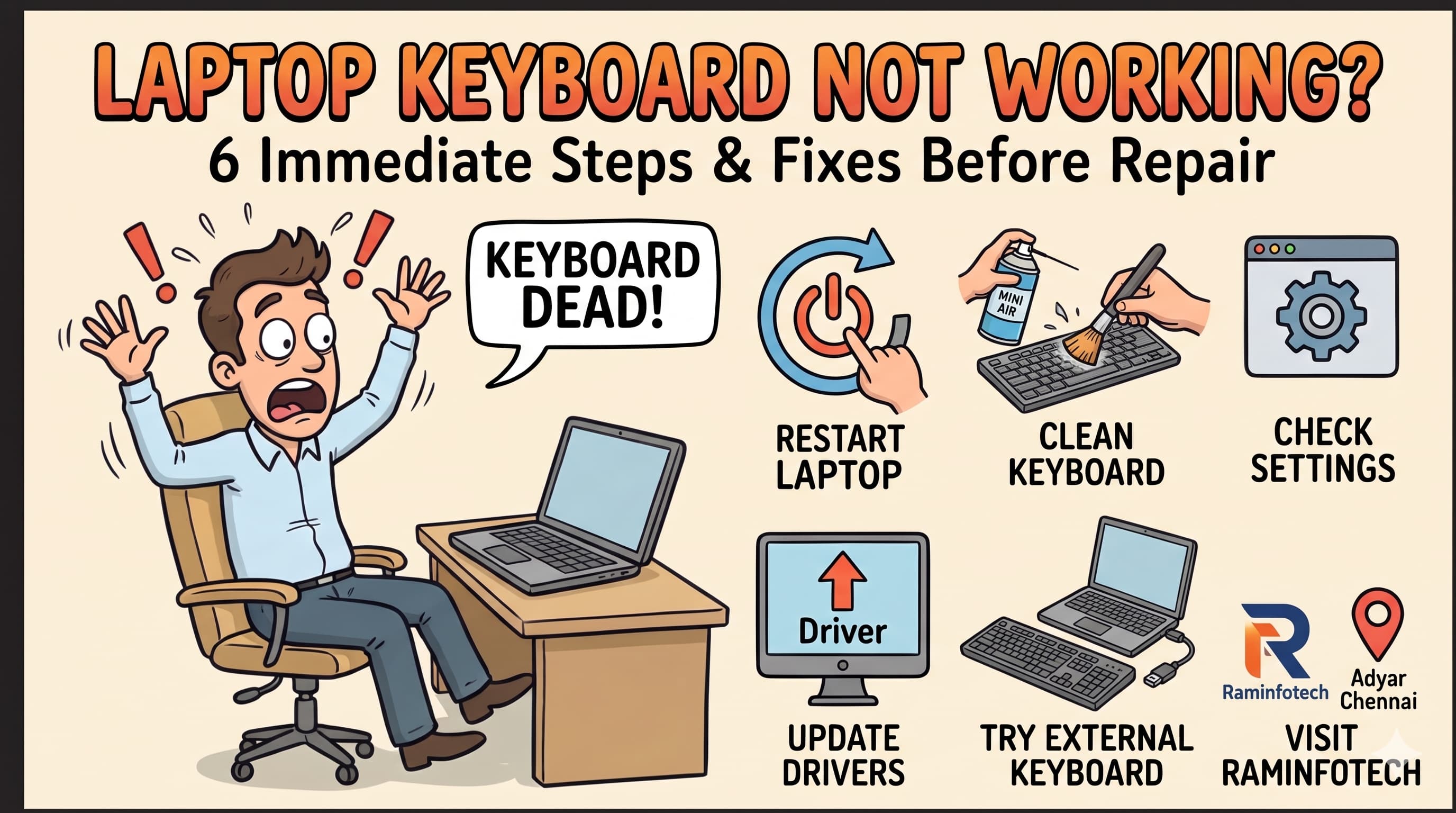
Here are 6 practical steps to troubleshoot a laptop keyboard that is not working properly:
1. Restart Your Laptop Completely
Temporary driver hangs or background system glitches often freeze keyboard input. Save your work using your mouse or touchpad, perform a full restart (not just Sleep), and check if the keys respond normally after rebooting.
2. Check Sticky Keys, Filter Keys, and Keyboard Layout Settings
Accidentally pressing shortcut keys can turn on Windows Filter Keys or Sticky Keys, making the keyboard feel unresponsive or delayed. Similarly, switching your input language (e.g., from English US to English UK) causes keys like @, ", or # to type the wrong symbols.
Fix: Open Settings > Accessibility > Keyboard on Windows and turn off Filter Keys and Sticky Keys, then verify your language layout in the taskbar.3. Clean Dust and Crumbs Under Stuck Keys
Tiny food crumbs, dust particles, or hair trapped beneath keycaps can block the rubber dome or scissor switch from registering a press.
Fix: Tilt the laptop slightly and use short bursts of compressed air around the affected keys to clear debris. Avoid pouring liquids or using sharp metal pins under the keys.4. Reinstall or Update the Keyboard Driver
Corrupted HID (Human Interface Device) drivers after a Windows update can disable your built-in keyboard while leaving the touchpad working.
Fix: Right-click the Start button, open Device Manager, expand Keyboards, right-click Standard PS/2 Keyboard (or HID Keyboard Device), select Uninstall device, and restart your laptop so Windows reinstalls a clean driver automatically.5. Test with an External USB Keyboard
Plug in a standard USB or wireless keyboard to isolate the problem. If the external keyboard types every key smoothly while the built-in laptop keyboard still fails, the issue is hardware-related rather than a Windows software bug.
6. Check for Past Liquid Spills or Swollen Battery Pressure
Even a few drops of water or coffee spilled weeks earlier can slowly corrode the thin keyboard ribbon membrane underneath. In some slim laptops, a slightly swollen battery underneath the palm rest can also push upward and stop the center keys from clicking properly.
Professional Laptop Keyboard ReplacemenIf multiple keys remain dead across rows or keep typing automatically even after driver resets and cleaning, the internal keyboard membrane or ribbon cable has worn out and needs replacement.
For fast, genuine laptop keyboard replacement in Chennai ↗, visit Raminfotech Laptop Service for safe installation and full hardware testing across Dell, HP, Lenovo, Asus, Acer, Apple MacBook, and all major brands.
Short Summary:Are keys on your laptop keyboard not working or typing wrong characters? Start by restarting your device, turning off Filter Keys, cleaning dust under keycaps, and reinstalling the keyboard driver in Device Manager. If an external USB keyboard works fine, you need a hardware replacement. Visit Raminfotech Laptop Service Chennai Pvt Ltd: https://www.raminfotechlaptopservice.in/ ↗